
 BLOG
BLOG
Minimize construction site visits: how to support your field crew remotely
Somewhere right now, a surveyor is driving 45 minutes to a construction site to answer a question that takes 5 minutes to answer.
The question isn’t hard. The site crew just had no way to handle it without someone physically showing up—wrong file, no visibility, no one to call who could actually see what they were looking at.
That drive is the real cost. Multiply it by every crew, every site, every week.
There’s a better setup: the office pushes the drawings, stays visible, and guides remotely. The field captures, checks, and flags without needing a geospatial background.
When something is off, the surveyor sees this in real time on his desktop and guides the team remotely, immediately. This article walks through how to build that workflow, and where Emlid Flow makes it stick.
Making GNSS work smoothly for field crews
Most field crews aren’t surveyors: they’re superintendents, foremen, and utility leads—people responsible for getting work built and verified on site. When GNSS tools fit naturally into their workflow, they become powerful tools for quick checks, layout, and documentation.
For that to happen, three things matter most.
1. Use tools that match how crews work
Many of the people who benefit from GNSS on a jobsite—foremen, superintendents, VDC coordinators—don’t think in coordinates. What matters to them is the drawing.
Software that shows positioning directly on a site plan makes the tool immediately understandable in the field. As one VDC manager told us:
“If I tell my team to go to a northing and easting, that is meaningless to them. What means something is the drawing. Being able to locate myself in something that looks like the plan on site—that’s what’s useful to everybody out there.”
2. Keep drawings and files easy to share
Construction drawings evolve constantly. When files move between the office and the field through emails and manual exports, updates can take time to reach every device.
Teams work faster when design files can be shared and updated quickly, so crews always reference the latest version on site. That keeps field checks aligned with the same drawings the office is using.
3. Give the office visibility into what’s happening on site
When a field user runs into a question, it helps when the office can see what they see. Shared data and live context make it easier to verify measurements, answer layout questions, and resolve issues quickly—without waiting for someone to drive to the site.
In practice, this shortens the feedback loop between field and office and helps crews move forward with confidence.
See how field and office teams can share survey data in real time with Emlid Flow and Flow 360:
Splitting the roles between the field and the office
Most of the friction in field-office workflows comes from the same place: the wrong person doing the wrong job:
- The surveyor setting up devices on site.
- The superintendent calling the office to ask what coordinate system to use.
- The VDC manager driving two hours to verify four points.
The fix is simpler than it sounds. Split the roles cleanly—office owns setup, field owns capture—and most of that friction disappears.
1. Office setup: prepare and publish the job package
This step typically happens before anyone goes to the field. The office gathers the surveyor’s control points, sets the correct coordinate system, geolocates the DXF drawings, and prepares the project files.
A VDC manager described his process as:
“Somebody calls me, ‘I need an Emlid receiver on site.’ I get this information from the surveyor. I set up the job. I put the right coordinate system. I give them the drawings. They don’t have to worry about it.”
His field teams calibrate at the start of the day and go to work. They never touch the backend.
With Emlid Flow 360, the office can organize this information in a shared workspace: set up the project, upload drawings, and publish the files the field team will use. Once everything is ready, the crew opens the same project in Emlid Flow, the mobile app used on site.
2. Field workflow: stake out or capture data on site
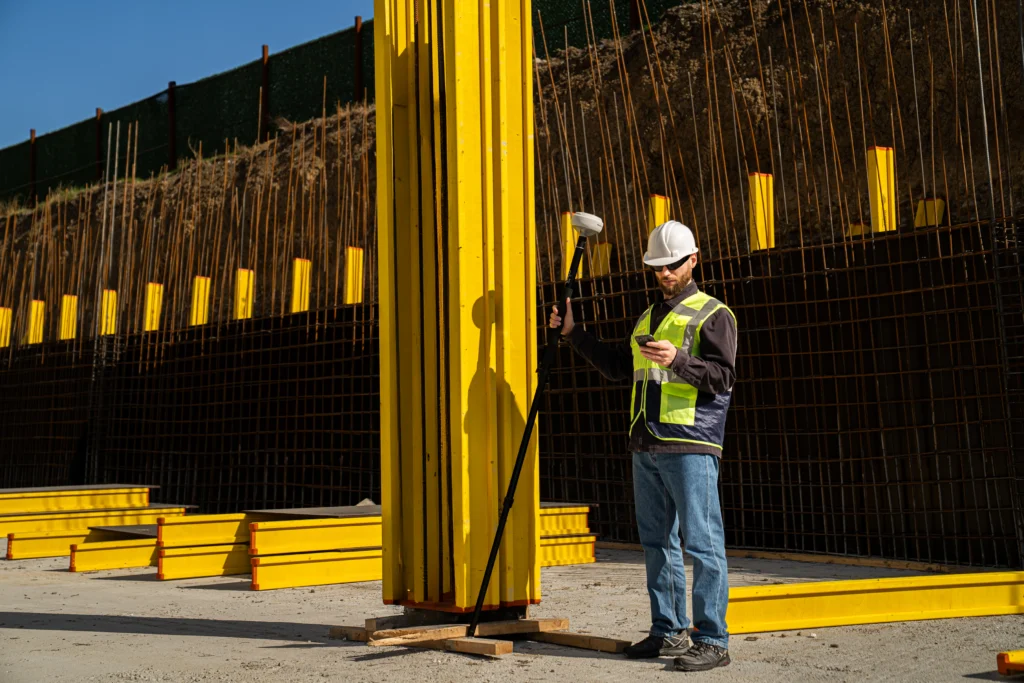
Superintendents and foremen open the project on Emlid Flow on their iOS/Android device and start walking the site.
They’re not surveying, they’re doing quality checks: verifying that footings, sleeves, MEP elements, and utility structures are where the drawing says they should be.
3. Office support: review and respond in real time
When something looks off in the field, the user captures a point, and it shows up immediately in the office view. The office can see the deviation, compare it against the design, and respond: send an updated file, confirm the discrepancy, or walk the field user through what to do next.
One construction team described discovering a buried utility conflict before it became a change order—because someone on site could see exactly where the building corner would land relative to the overhead line, and raised the flag early enough to adjust. They couldn’t have done that without spatial awareness that matched what the office was looking at.
How does Emlid Flow make this reliable?
The mechanics of this workflow depend on a few things working well together. Here’s where the Emlid Flow mobile app and cloud-based Emlid Flow 360 specifically help.
Workspaces: shared projects, individual accounts
The most common workaround teams use before they set this up properly is the shared account. Everyone logs in with the same credentials, on the same project, from different devices.
It works until it doesn’t—which is usually when two crews capture points at the same time and the naming conflicts, or when nobody can tell which measurement came from which device.
Emlid Flow’s workspace model gives each person their own account while keeping everyone in the same project.
The office creates the project, sets the coordinate system, uploads the drawings, and invites the field users in. From that point, every file the office publishes appears instantly on every device in the workspace. Measurements a field user collects show up in the office view immediately, attributed to the person who took them.
Related reading: Manage teamwork surveys with collaboration tools in Emlid Flow
One utility company we spoke with described exactly the use case this solves: two crews working on the same road reconstruction, one finishing a section and capping a structure, the other arriving later to continue the work.
With a shared project, the second crew could open their device and see the point the first crew took—exactly where to pick up, without a phone call to the office or re-measuring what was already captured.
Drawing publishing: one upload, immediate delivery
When the office updates a drawing—because the design changed, there was an error in the original, or the surveyor sent a corrected file—the old model required re-exporting, re-emailing, and re-importing on every device.
In practice, this meant some crews worked from outdated drawings for hours or days.
With Emlid Flow 360, the office updates the file in the project, and it’s live for everyone. The field doesn’t receive a notification, request a refresh, or do anything at all. They’re just looking at the current version.
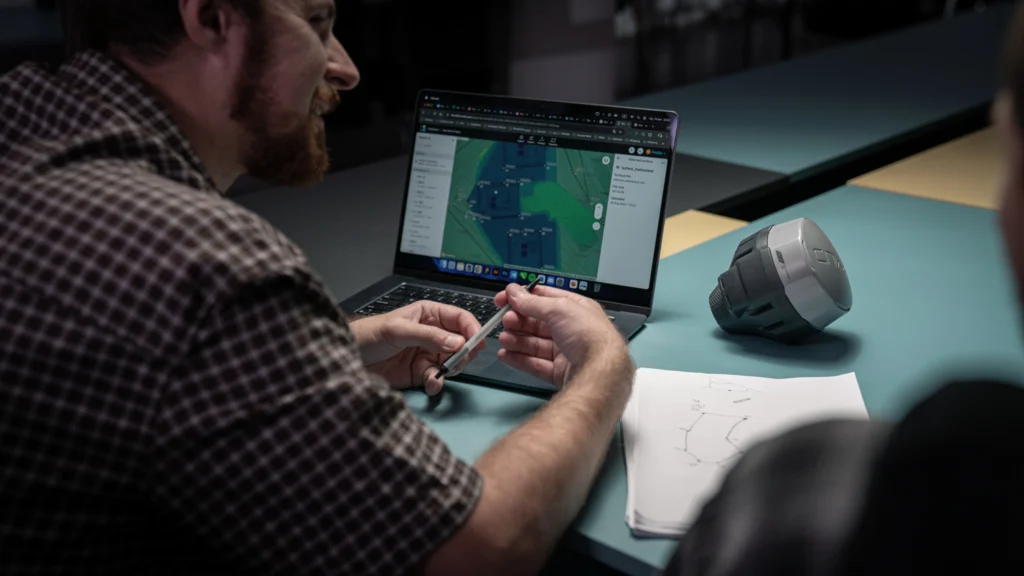
One team we spoke with described how they used to coordinate drawing delivery: “I used to have to create a DXF, send it to them via email, they would have to upload it, all of that. Right now, that just goes up live. I take care of making sure those drawings are in the right place, and the colors are the way I want them, and people just get them right away.“
That immediacy is what makes remote support possible.
Live position tracking: guidance without guesswork
One of the clearest expressions of what field-office collaboration can be: a superintendent sits in the site trailer with the Emlid Flow 360, watching a surveyor or a foreman walk the site in real time.
When the person in the field starts measuring the wrong line, the super can say before they’ve taken ten shots in the wrong direction: “You need to go west a bit. That’s not the line we need.“
One construction manager described this almost exactly when we showed him the feature:
“Having someone on the computer who has the web browser open, they could have the drawings up on one screen and the live map up, and they could see where their surveyors are in real time. The superintendent sitting at their computer can help direct them—’go check this line over here’—they can see it all in real time. That’s really nice.“
This matters most when the person in the field has the receiver but doesn’t have all the context. They know how to capture the point, they don’t necessarily know if the elevation they just got is what it’s supposed to be.
But the person in the office does. This combination of live position, shared drawings, and instant data sync closes that gap without a site visit.
Screenshots as RFI evidence
When something is flagged in the field, the next step is usually documentation. The field user takes a screenshot of Emlid Flow showing their position against the design drawing, with the deviation visible, and it goes straight into Procore or whatever project management platform the team uses.
One VDC manager described building it into his standard checklist: when checking elevations, take a screenshot showing the reading and the drawing context, upload it to Procore as part of the inspection record.
“As long as the screen shows you what you’re measuring, related to contract drawing: that is very meaningful.” The exhibit is built into the check itself, not assembled afterward.
Three things that have to go right for this to work
The office is in charge of the project setup and support:
- Unified project management: share default project settings and NTRIP profiles to ensure data consistency. Use Map view presets to define the default DTM, CAD, and WMS layers for the team.
- The office owns the coordinate system: set the CS and vertical datum, and share localization settings across the team. Done once in the office, the field inherits a reliable setup.
- Naming conventions come first: when multiple crews capture data in one project, shared codes and naming rules keep collected points aligned with the design.
How to get started in two steps
If the workflow makes sense, the next step is just starting. Check out how to get started with no hassle:
1. Set up, standardize, confirm
Start by identifying your office point of contact—the person who owns the workspace, manages drawings, and controls what the field sees.
Set up the workspace in Emlid Flow 360, invite the field users, and confirm that everyone sees the same project set before anything goes to the field.
Establish naming conventions, code libraries, CS, and run the full workflow on your own device before any crew gets a receiver.
2. Run one pilot project
Pick one active job with a manageable scope. Run the complete loop: office sets up a project and publishes the drawing in Flow 360, field starts capturing with Emlid Flow, office reviews in real time, deviations get documented and pushed to Procore or equivalent.
At the end of the pilot project, look at three things:
- How many calls came in that required a site visit
- How long RFI documentation took
- Whether the field team came back with any “we weren’t sure what we were measuring against” problems
Those three indicators will tell you whether the workflow is set up correctly.
Pours don’t wait. Schedules don’t forgive a two-hour round trip to answer a five-minute question. When the office has live visibility, and the field has the right setup, the question gets answered before work stops—and the only thing that moves is the project forward.
A connected setup for field and office
Emlid Flow and Flow 360 are designed to keep field and office teams working from the same data. Drawings and project files are managed in Flow 360, where the office can organize projects, publish updates, and review measurements coming from the field.
In the field, crews use Emlid Flow to view drawings, capture points, verify positions, and document deviations directly on site. Data syncs automatically to the office workspace, so teams can review results and respond quickly when questions come up.
Combined with Reach GNSS receivers, the system provides a ready-to-use workflow for construction teams: accurate positioning in the field, shared visibility in the office, and fewer delays caused by disconnected tools.
Ready to set it up for your team?
Prefer to talk it through? Book a call with our team.